
Oracle Database 23ai installation is normally a straightforward process, similar to a typical Windows software installation. However, the installation may fail or roll back due to several environmental issues such as:
- Pre-existing Oracle Inventory conflicts.
- Residual Oracle installation files.
- Incorrect folder permissions.
- User Access Control (UAC) restrictions.
- Existing Oracle environment variables.
- Windows local group membership issues.
- Windows user and computer name conflicts.
- Oracle Universal Installer failing to resolve the installation user.
There are several ways to troubleshoot the issue. Start with the basic method before proceeding to the advanced troubleshooting procedure.
- Download and extract the Oracle 23ai installer from the compressed file.
- If you have tried run the installer and face the issue, navigate to C:\Program Files\Oracle and delete the folder.
- Delete the unused app folder at C:\ as well.
- Create a folder at C:\ with the name oracle. Enter the folder and create another folder with the name product. Enter the folder again and create a folder name 23ai.
- Run your Command Prompt as an Administrator and execute the pasted command below.
- Go to c:\oracle and left-click, navigate to Properties > Security > Edit. Make sure all the user name has the full-control permission.
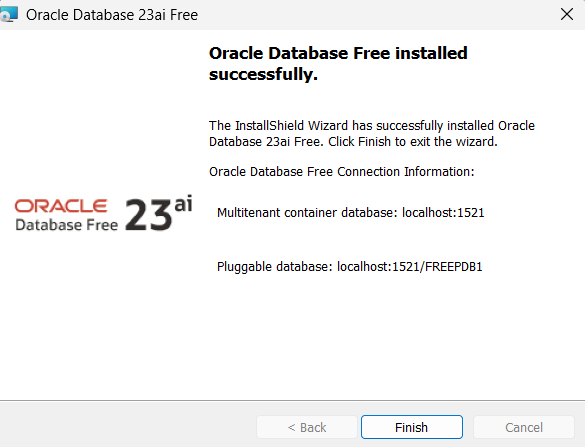
- Re-launch the software installer and observe.
icacls c:\oracle /inheritancelevel:d
icacls c:\oracle /remove:g *s-1-5-11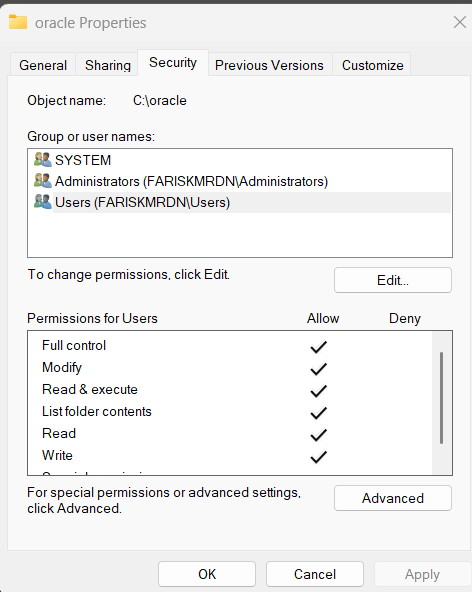
Advanced Troubleshooting
Sometimes the previous mentioned method is not working. A deep dive into the logs on the Oracle Inventory is a must.
One of the most common failure is:
PRCZ-1082
Failed to add Windows user or Windows group "<username>"
to Windows group "USERS"

WSE-000031:
Unable to add user to operating system group.

O/S-Error: (OS 1387)
A member could not be added to or removed from the local group
because the member does not exist.
In this condition. Oracle Installer fails during AddInstallUserToGroup which caused the installation to terminate on the spot (that’s the reason why we see the Fallback).
- Verify the windows installation account via Computer Management (Win + R) and enter compmgmt.msc.
- Navigate to System Tools > Local Users and Groups > Users. Verify the current windows installation user exists and is enabled.
- Verify the membership of the administrators group by navigating to Local Users and Groups > Groups > Administrators. Verify the installation user by double clicking the Administrators.
- Add the installation account to the users group manually by navigating to Local Users and Groups > Groups > Users. Double click the Users, click add and enter the installation account. Save all the changes.
Sometimes cleaning the Environment Variables might help as well.
- Search for Edit the system environment variables.
- Click Advanced > Environment Variables.
- Check both User variables and System Variables. Look out for something named ORACLE_HOME, TNS_ADMIN. Clear the variable.
- Clean the Oracle Database entries from PATH. Navigate to System Variables > path > Edit.
- Check for old Oracle Database Home entries such as mentioned below.
- Remove the entries BUT MAKE SURE to not delete the entire Path variable (If you did then Sayonara my computer 😁).
- Check and remove residues for Oracle services on Windows Services
OracleServiceFREE OracleOraDB23Home1TNSListener.
C:\oracle\product\23ai\dbhomeFree\bin
C:\app\<username>\product\23ai\dbhomeFree\bin
Another issue can be about the machine name itself. Mine before has the same username and Computer name which cause the issue. even though:
- There are no residual Oracle services.
- The user account exists.
- The SID is valid.
- The user is a member of
Administrators. - The user is already a member of
Users. - Oracle environment variables have been cleaned.
PRCZ-1082
WSE-000031
OS Error 1387
Simply rename the machine can be another solution for the failed installation.
- Navigate to Settings > System > About.
- Compare the device name and windows username.
- If the Computer/Device name = username, simply rename it by clicking the Rename this PC.
- Save and restart.

Leave a Reply