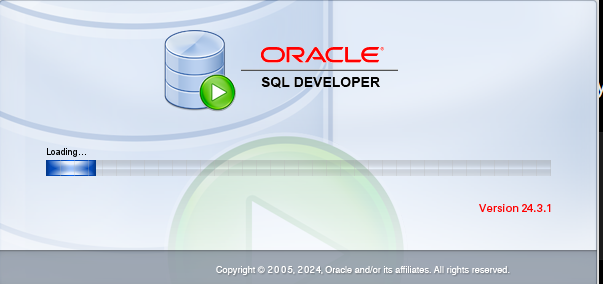
Do you ever face an issue where ORACLE SQL Developer stuck at the splash screen (loading screen)?
This issue normally caused by bad services, issues with listener port and etc.
There are 2 symptoms of this issue:-
- ORACLE SQL Developer stuck at the splash screen.
- SQL Plus received the following error (mentioned below) even FREEPDB1 shows READ and WRITE.
SHOW PDBS;
ORA-12514: Cannot connect to database.
Service FREEPDB1 is not registered with the listener
If you ever encounter this issue, try to login via local SYSDBA
SQL> / as sysdba
SQL> SHOW PDBS;
Expect the following output:
CON_ID   CON_NAME    OPEN MODE
2        PDB$SEED    READ ONLY
3        FREEPDB1    READ WRITE
If the PDB is still not open, use the following command:
ALTER PLUGGABLE DATABASE ALL OPEN;
ALTER PLUGGABLE DATABASE ALL SAVE STATE;
Now, after we open the PDB, open your Command Prompt (CMD) as an Administrator. Execute the following command:
lsnrctl status
lsnrctl services
Make sure that the following services exist with the instance status ready:
FREE
FREEXDB
freepdb1
Service "freepdb1" has 1 instance(s).
  Instance "free", status READY
IF the FREEPDB1 does not show up on the listener…
Run the following command in your SQL Plus:
ALTER SYSTEM REGISTER;Check back the instance and listener by using lsnrctl services in your command prompt.
Now let’s verify the ORACLE Service Registration. Inside your SQL Plus execute the following query:
SELECT name, network_name, pdb
FROM v$services
ORDER BY name;
Expect at least the following name to show up;
freepdb1
FREEPDB1
Then retry the listener connection
sqlplus sys/Admin@//localhost:1521/FREEPDB1 as sysdbaWhen PDB connection has been resolved, let’s troubleshoot the SQL Developer that stuck…
Check running SQL Developer processes:
tasklist | findstr /I "sqldeveloper java"if you get an error message, double check your SQL Developer process. It might be a little bit different (Example: sqldeveloper64W.exe).
Now when you confirm the running process, terminate the stuck/redundant process:
taskkill /F /T /IM sqldeveloper64W.exe
tasklist | findstr /I "sqldeveloper"
If you have terminate the processes, tasklist will not showing any output (meaning that the process has been terminated).
By using your command prompt, locate the SQL Developer cache
dir "%APPDATA%\SQL Developer" /s /b | findstr /I "system_cache"You shall backup the SQL Developer Cache for rollback if things go out wrong. Rename the file with the following command.
ren "C:\Users\user\AppData\Roaming\SQL Developer\system24.3.1.347.1826\system_cache" system_cache_OLDOnce completed, re-launch your SQL Developer. SQL Developer will create a new fresh system_cache file.
Your SQL Developer shall load correctly and will no longer stuck at the splash screen.
P/S: This note created based on the issue faced by ICT501 student (CS230).

Leave a Reply